Phomemo
- 3.3
- Rating
- 1.00M
- Installs
- Free
- Price

 Analysis by App-foxy
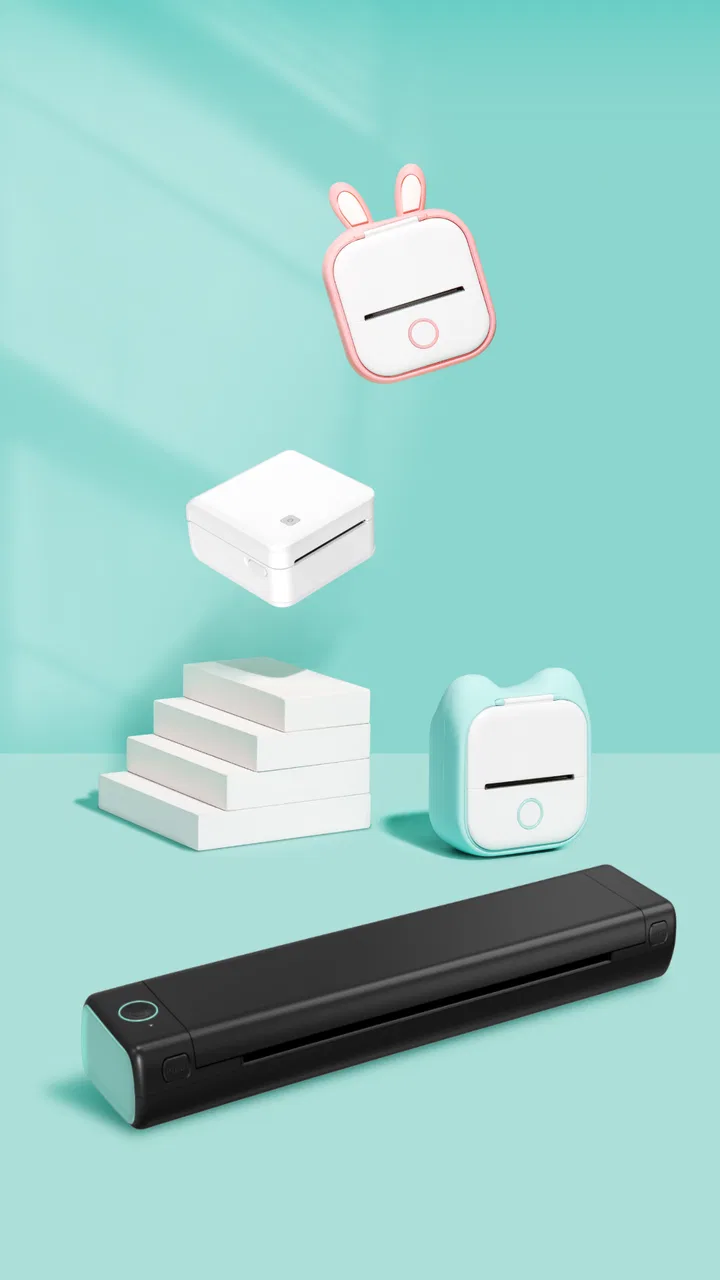
I approached Phomemo as a practical companion for a small inkless printer rather than as a full document-management suite. The app is designed to help turn a phone into a source of quick physical prints, whether that means a photo, a short note, a checklist, or a simple document. That focus makes it appealing when I want something tangible without opening a laptop or dealing with a conventional ink printer.
Phomemo is a free tools app from ZHUHAI QUIN TECHNOLOGY CO.,LTD. It is available for Everyone and has passed the one-million-install mark, which suggests that the idea has found a sizeable audience among people who use compact printers at home, at school, at work, or while travelling. The current version is 4.0.0, and it works on Android 7.0 or later. Optional purchases range from $0.49 to $42.99 per item, so I would treat the free download as an opportunity to test the workflow before spending anything inside the app.
What to expect before printing
The most important thing to understand is that the app is only one part of the experience. It is a control centre for compatible Phomemo hardware, not a replacement for the printer itself. If you install it without the matching device, you can explore the software, but the useful moment comes when the phone and printer communicate successfully.
You May Also Like

 Blood Strike: 2.5 Anniversary
Blood Strike’s Loadouts Turn Every Drop Into a Tactical Gamble
A close look at Blood Strike’s custom loadouts: how fast access to signature weapons reshapes its battle royale rhythm, rewards preparation, and narrows the gap between fights.

 Pandora - Music & Podcasts
Pandora’s Music Is Easy to Start, but Harder to Recover
Pandora’s strength is its low-effort path from a seed to a station. Its weak spot is how much confidence it asks you to place in connection, setup, and quiet recovery.

 8 Ball Pool
 Is Built on Rivalries, Rematches, and Routine
A close look at the rivalries, rematches, shared routines, and unanswered safety questions that turn a quick pool match into a persistent mobile community.

 Samsung Music
’s Quiet Strength Is Playing What You Already Own
Its reach comes less from spectacle than from dependable access to a personal library. That simplicity is both the app’s strongest retention engine and its ceiling.

 AccuWeather: Weather Radar
AccuWeather Review: A Quick, Clear Forecast for Everyday Decisions
For everyday plans, the best forecast is the one you can understand quickly. AccuWeather makes rain timing, radar, and local conditions easy to act on, with a few trade-offs.

 Hill Climb Racing
Why Hill Climb Racing Still Turns Crashes Into One More Run
A tiny car, a bumpy hill and one more upgrade: Hill Climb Racing keeps resurfacing because its simple chaos makes every near-miss feel personal.
More From Our News Desk



The app’s main appeal is immediacy. Instead of sending a file to a large office printer, I can prepare a small item on the phone and print it where I am. This suits labels, reminders, study notes, packing lists, small images, and other pieces of information that are easier to use when they are physically nearby. I would not choose this setup for long reports or polished colour photography. A compact inkless printer has a different purpose, and the app makes the most sense when the printed result is meant to be quick, portable, and functional.
My first expectation would be modest image output and a simple editing process. The store rating is a 3.3 average from around 9.4 thousand ratings, with roughly 1.5 thousand written reviews. I read that as a sign to approach the app with realistic expectations: it can be useful, but the experience may depend heavily on the printer model, phone connection, media, and the type of content being printed.
There is also an important trade-off compared with an ordinary inkjet printer. Inkless printing avoids the familiar problem of replacing cartridges, but the result is tied to the thermal paper or other compatible material being used. That can be excellent for monochrome notes and labels, yet less suitable when I need accurate colour, fine photo detail, or a document that looks exactly like its screen version.
Who will get the most from it
I think Phomemo is strongest for people who enjoy external reminders. A student could print a compact revision prompt and keep it beside a notebook. A parent could prepare a small checklist for a child’s morning routine. Someone organising storage could create quick labels without sitting at a desktop computer. A traveller might print practical notes before leaving the room, provided the printer and paper are already available.
The app is also a reasonable choice for people who dislike turning every small task into a cloud document. A physical slip can be more visible than another notification, especially when I need to remember something at a desk, beside a door, or inside a bag. That is a specific strength of the Phomemo workflow: it connects a phone-based action with a physical habit.
I would skip it if my goal is professional photo printing, large pages, high-volume office work, or exact colour reproduction. I would also hesitate if I only need occasional standard documents, because a nearby conventional printer or a copy shop may be more convenient. Phomemo becomes worthwhile when the small format and quick access are part of the reason for printing.
Getting through the first setup
For a first-time user, I would keep the initial setup deliberately simple. Install the app on a supported Android phone, prepare the compatible printer, and make sure both devices are ready before trying to design anything elaborate. The first success should be a short, uncomplicated test rather than a carefully edited photo. That approach separates connection problems from layout problems and makes troubleshooting far less frustrating.
Once the app opens, I would look for the printer connection area and follow the on-screen route for pairing. The exact screens can vary with the hardware, so I would avoid assuming that every Phomemo printer behaves identically. If the app does not immediately find the device, I would check that the printer is powered on, close other printing apps, and move the phone closer before repeatedly changing settings.
A useful preparation step is choosing the paper before designing the content. The width and surface of the roll or sheet affect how much text fits and how an image will look. If I create a long note without considering the available paper, the final result may be awkwardly wrapped or split into more pieces than expected. Designing around the physical medium is one of the differences between this app and a normal phone editor.
I would also keep the first test content short. A single line of text, a basic reminder, or a small uncomplicated image is better than a dense document. If that prints correctly, I know that the essential path is working: the app can communicate with the printer, the printer can process the job, and the paper is loaded in a usable way.
Some users may wonder whether the app is useful without buying anything. It is free to install, so it is reasonable to explore the interface and decide whether it fits the printer workflow before considering optional purchases. I would not make an in-app purchase during setup. First I would confirm that the printer connects reliably and that the printed appearance suits my needs.
My recommended first meaningful action
After pairing, I would create a small checklist rather than start with a photograph. A checklist tests several practical parts of the experience at once: text entry, line spacing, page length, and the usefulness of the final print. For example, I might make a short leaving-home list with keys, wallet, charger, and water. It is simple enough to finish quickly, but useful enough that I can judge whether the physical result earns a place in my routine.
I would keep each line brief and preview the layout before sending it. Small printers reward concise writing. Long sentences can become difficult to scan, while short action phrases remain readable even when the print is narrow. This is an easy improvement that does not require advanced editing: write for the paper’s size, not for the phone’s screen.
The first successful print should be judged by usefulness, not by perfection. I would check whether the text is legible, whether the margins feel sensible, and whether the paper length matches the amount of information. If the checklist is easy to read at a glance, the app has already demonstrated its main value.
A second good test is a small personal label. I might print the name of a storage box or a short reminder for a cable drawer. Labels reveal whether the app is practical for repeated everyday tasks. They also show why this type of printer can be more convenient than opening a word processor: the content is created with a small physical purpose in mind.
For photos, I would begin with a high-contrast image and avoid judging the entire app from one complicated picture. Inkless output can interpret photographs differently from the bright display on a phone. A picture with clear shapes and strong separation between light and dark areas gives a fairer first test than a dim, detailed scene.
How I would use it in an ordinary day
Imagine preparing for a weekend trip. I could use the phone to make a compact packing checklist, print it, and leave it next to the open bag. Later, I could create a small label for a pouch containing chargers. The value is not that either task is impossible without Phomemo; it is that the app gives both tasks a physical form quickly, without requiring a full-size printer.
At home, I would use the same pattern for temporary organisation. A label on a box can be more useful than a note in an app because anyone in the room can see it. At a desk, a short to-do list can reduce the temptation to switch between phone applications. For study, a printed prompt beside a textbook may be more noticeable than a digital note buried among other tabs.
These uses also reveal a limitation: the printer creates small outputs, not permanent archival documents. I would use the app for temporary reminders, lightweight organisation, and handy reference slips. For records that must remain crisp and reliable for years, I would choose a standard printer or save the original digital file as well.
Common confusion and practical workarounds
The first common confusion is expecting every phone file to print exactly as it appears on screen. A phone display has flexible dimensions, while a compact printer has a fixed physical width. Text may wrap, images may be cropped, and a page may become longer than expected. I would always preview the composition and simplify it when necessary instead of assuming that a document designed for a large screen will translate perfectly.
The second is treating the app like a general-purpose printer driver. Its strongest experience is built around quick, focused items. If I bring in a long document, I should be prepared to edit it down or accept that the result will be less convenient than a normal page. The more I ask it to behave like desktop publishing software, the more likely I am to notice the limits of the small-format workflow.
Another point of friction is the relationship between the app and the physical media. If a print looks faint, uneven, or poorly framed, the cause may not be the design alone. Paper loading, the selected material, and the printer’s condition can all affect the result. I would test with a fresh, properly aligned piece of compatible paper before rebuilding the entire design from scratch.
Connection trouble deserves a calm approach. I would avoid sending the same job repeatedly, because that can create duplicate prints once the connection recovers. Instead, I would wait, confirm the printer’s state, and send one short test. This is especially important when printing a longer note, where repeated attempts can waste paper.
Users may also wonder whether the app is suitable for children because the age classification is Everyone. I see it as approachable for family use, but the physical printer and paper still need normal adult supervision. The rating describes the app’s audience, not a promise that every printed item will be appropriate in every situation.
Where the app feels better than usual alternatives
Compared with a notes app, Phomemo has the advantage of turning a reminder into something visible and shareable in a room. Compared with a full office printer, it can be less intimidating for a tiny task and more suitable for a desk drawer, travel bag, or craft area. Compared with handwriting, it offers cleaner repeated labels and makes it easier to reuse the same wording.
Those advantages disappear when the task grows. A notes app is better for searchable information, a full printer is better for formal pages, and handwriting is sometimes faster for a one-off annotation. I would choose Phomemo when the physical object itself is useful, not simply because printing sounds more advanced.
The optional purchase range is another reason to think about the way I plan to use the app. Since individual items can cost from $0.49 up to $42.99, I would first establish whether the free experience covers my normal needs. Someone who only wants occasional basic prints may have a different view of value from a user who relies on specialised creative material or repeated design work.
I would also keep the original content outside the app when it matters. A printed label can be lost, damaged, or replaced, so I would retain important wording in a notes app or document. This small habit makes the physical print convenient without making it the only copy of something important.
My next step after the first print
Once the basic checklist works, I would create two or three reusable formats: a short checklist, a storage label, and a compact reminder. Keeping the wording and layout consistent makes later printing faster. It also helps reveal whether the app is becoming part of a useful routine or whether I am only experimenting with the novelty of a new device.
I would then test one image and one longer text item separately. That gives a clearer sense of where the app performs best for my own printer and paper. If the image is disappointing but labels are excellent, I would use Phomemo mainly for organisation. If short documents are easy to read, I would add them to my study or work habits. The right use is the one that survives beyond the first day.
For anyone deciding whether to try it, my advice is straightforward: start with a small physical problem you genuinely want to solve. Do not begin by trying to reproduce a polished office page or a gallery-quality photograph. Begin with a checklist, label, or short reminder, because those tasks match the app’s practical character.
Overall, I see Phomemo as a focused tools app with a clear purpose and some understandable boundaries. It can make a compatible inkless printer feel approachable, especially when I need a quick physical note rather than a formal document. Its 1M-plus installs show that this compact-printing idea has broad interest, while the moderate average rating reminds me that the experience is not universally effortless.
The best reason to use Phomemo is not simply that it prints; it is that it makes small physical information easy to create at the moment it becomes useful. If that matches your habits, the free app is worth testing with a simple first checklist. If you need large, colour-accurate, searchable, or archival output, I would choose a conventional alternative instead.
FAQs for Phomemo
01What is Phomemo, and what can I use it for?
Phomemo is a companion app for compatible Phomemo portable printers, label makers, and thermal printers. After connecting a supported device, you can create and print labels, notes, stickers, receipts, study cards, images, and other small-format documents. The available tools depend on the printer model, but the app generally includes templates, text editing, symbols, barcodes, QR codes, and image-import options.
02Which printers are compatible with the Phomemo app?
Compatibility depends on the exact Phomemo printer and its connection method. Many supported models connect through Bluetooth, while some devices may use Wi-Fi or another dedicated setup process. Before downloading, check the printer’s model number in the product manual, packaging, or official compatibility list. Installing the app alone does not guarantee that every Phomemo device will work with your phone.
03Does Phomemo require an internet connection to print?
An internet connection may be needed for downloading the app, signing in, accessing online templates, receiving updates, or loading certain resources. However, printing from a connected compatible device can often be performed through Bluetooth without mobile data once the required materials are available. Actual offline functionality varies by model and app version, so users should test the connection before relying on it away from Wi-Fi.
04Is the Phomemo app free to download and use?
Phomemo is generally available as a free download, but the overall printing cost includes the required paper, labels, or other consumables for your specific printer. Some app features, templates, design resources, or advanced tools may vary by region, device, or version and could involve optional purchases. Review the app-store listing and any in-app purchase information before creating an account or ordering supplies.
05Is Phomemo easy to use for beginners?
The app is designed for relatively simple mobile printing: choose a template or blank project, add text or graphics, connect a compatible printer, and send the design to print. Beginners may still need time to understand paper sizes, Bluetooth permissions, calibration, and model-specific settings. Print quality and layout also depend on using the correct paper type and selecting the right printer profile.
Pros
- Compact printers are easy to carry and use on the go.
- Supports multiple Phomemo printer models from one app.
- Bluetooth pairing is generally quick and convenient.
- Templates help create labels without advanced design skills.
- Print previews make it easy to check layouts before printing.
Cons
- Some features and templates may require an internet connection.
- Compatibility varies between devices and Phomemo printer models.
- The app can feel cluttered because of its many editing options.
- Print quality depends heavily on the selected paper and printer.
- Occasional Bluetooth reconnection may be needed after switching devices.

Phomemo
Gallery